Thursday, 28 May 2020
Jabber Login
Sometimes simply for troubleshooting or testing purposes you may want to logout a user that is logged in to Windows AD device and login as yourself ( the admin). Normally if you reset Cisco Jabber the currently logged in user credentials will be used to create the new session. To disable this you can run the command below and then you can login as yourself.
msiexec.exe /i CiscoJabberSetup.msi CLEAR=1 UPN_DISCOVERY_ENABLED=false

Monday, 3 February 2020
CUBE Pcap
CUBE :-
*) Need to take capture from both internal and external interface of the CUBE, to understand the packets/Audio coming in and going out of the CUBE router in both directions.
*) Also enable below debugs in router to track the call.
Debugs/Packet capture in the router:-
- Commands to enable ip traffic packet capture:-
conf t
ip traffic-export profile sniffer1 mode capture
bidirectional
ip traffic-export profile sniffer2 mode capture
bidirectional
interface gig x/x/x /// External interface
ip traffic-export apply sniffer1
interface gig x/y/z /// Internal interface
ip traffic-export apply sniffer2
end
- To START/STOP/COPY capture in the router.
traffic-export interface gig x/x/x stop
traffic-export interface gig x/x/x clear
*) Enable below debugs
debug voip ccapi inout
debug ccsip messa
debug ccsip media
debug ccsip error
debug ccsip event
debug voip rtp session name
*) Procedure to collect capture/debug:-
traffic-export interface gig x/x/x stop
traffic-export interface gig x/x/x clear
traffic-export interface gig x/y/z stop
traffic-export interface gig x/y/z clear
clear log
<confirm>
traffic-export interface gig x/x/x start
traffic-export interface gig x/y/z start
*) Do the test calls, once the test call is done, do the below.
traffic-export interface gig x/x/x stop
traffic-export interface gig x/y/z stop
un all
term len 0
sh log
sh run
sh vers//
traffic-export interface gig x/x/x copy flash:gigxxx.pcap
traffic-export interface gig x/y/z copy flash:gigxyz.pcap
To copy the file over SSH you can use
Pscp.exe -pw C1sco123 admin@10.X.X.X:flash:pcap "c:\Temp"
Or
Copy Flash:filename.pcap scp://172.X.X.X/
traffic-export interface gig 0/1 stop
traffic-export interface gig 0/1 clear
traffic-export interface gig 0/0.342 stop
traffic-export interface gig 0/0.342 clear
traffic-export interface gig 0/1 start
traffic-export interface gig 0/0.342 start
traffic-export interface gig 0/0.342 copy flash:gig0.342dialtone.pcap
traffic-export interface gig 0/1 copy flash:gig1dialtone.pcap
traffic-export interface gig 0/1 stop
traffic-export interface gig 0/0.342 stop
*) Need to take capture from both internal and external interface of the CUBE, to understand the packets/Audio coming in and going out of the CUBE router in both directions.
*) Also enable below debugs in router to track the call.
Debugs/Packet capture in the router:-
- Commands to enable ip traffic packet capture:-
conf t
ip traffic-export profile sniffer1 mode capture
bidirectional
ip traffic-export profile sniffer2 mode capture
bidirectional
interface gig x/x/x /// External interface
ip traffic-export apply sniffer1
interface gig x/y/z /// Internal interface
ip traffic-export apply sniffer2
end
- To START/STOP/COPY capture in the router.
traffic-export interface gig x/x/x stop
traffic-export interface gig x/x/x clear
*) Enable below debugs
debug voip ccapi inout
debug ccsip messa
debug ccsip media
debug ccsip error
debug ccsip event
debug voip rtp session name
*) Procedure to collect capture/debug:-
traffic-export interface gig x/x/x stop
traffic-export interface gig x/x/x clear
traffic-export interface gig x/y/z stop
traffic-export interface gig x/y/z clear
clear log
<confirm>
traffic-export interface gig x/x/x start
traffic-export interface gig x/y/z start
*) Do the test calls, once the test call is done, do the below.
traffic-export interface gig x/x/x stop
traffic-export interface gig x/y/z stop
un all
term len 0
sh log
sh run
sh vers//
traffic-export interface gig x/x/x copy flash:gigxxx.pcap
traffic-export interface gig x/y/z copy flash:gigxyz.pcap
To copy the file over SSH you can use
Pscp.exe -pw C1sco123 admin@10.X.X.X:flash:pcap "c:\Temp"
Or
Copy Flash:filename.pcap scp://172.X.X.X/
traffic-export interface gig 0/1 stop
traffic-export interface gig 0/1 clear
traffic-export interface gig 0/0.342 stop
traffic-export interface gig 0/0.342 clear
traffic-export interface gig 0/1 start
traffic-export interface gig 0/0.342 start
traffic-export interface gig 0/0.342 copy flash:gig0.342dialtone.pcap
traffic-export interface gig 0/1 copy flash:gig1dialtone.pcap
traffic-export interface gig 0/1 stop
traffic-export interface gig 0/0.342 stop
Tuesday, 24 December 2019
Cisco ASA debug
Some usefull debug commands for ASA:
packet-tracer input Internet tcp X.X.X.X http X.X.X.X 6 http
packet-tracer input Internet icmp X.X.X.X 8 0 X.X.X.X detailed
To do a capture:
access-list capin permit ip host 10.10.10.x host 10.10.20.x
access-list capin permit ip host 10.10.20.x host 10.10.10.x
capture in access-list capin interface inside
then initiate the traffic from client to server, and use "show capture capin" to see if you can see the traffic in both directions.
Check IP Route:
show route
show asp table routing
packet-tracer input Internet tcp X.X.X.X http X.X.X.X 6 http
packet-tracer input Internet icmp X.X.X.X 8 0 X.X.X.X detailed
To do a capture:
access-list capin permit ip host 10.10.10.x host 10.10.20.x
access-list capin permit ip host 10.10.20.x host 10.10.10.x
capture in access-list capin interface inside
then initiate the traffic from client to server, and use "show capture capin" to see if you can see the traffic in both directions.
Check IP Route:
show route
show asp table routing
Cisco IP phone remote login to extension mobility via web url
- You created new user device profile
- You know the MAC address of the phone the user will be login on
- How can you log them in without the end user input
Easy just browse to the url below and replace the MAC and the username with the appropriate user ID that has been assigned the UDP.
http://CUCM IP/emapp/EMAppServlet?device=SEPXXXXXXXX&&userid=username&seq=12345
Hope this helps
Wednesday, 29 August 2018
Tuesday, 28 August 2018
How to use BAT to add user devidce profile (UDP) on CUMC v11.5
- Download bat_xxxxxx.xlt from CUCM
- Select the User Device Profiles tab
- Click on Create File Format and confirm that you wish to overwrite the existing CSV format after selecting the required fields for UDP profile - this will re-create the file with all selected fields see the fields I have used.
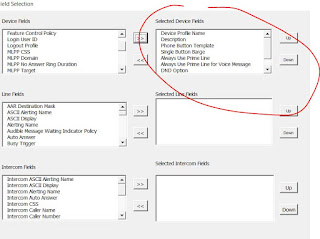

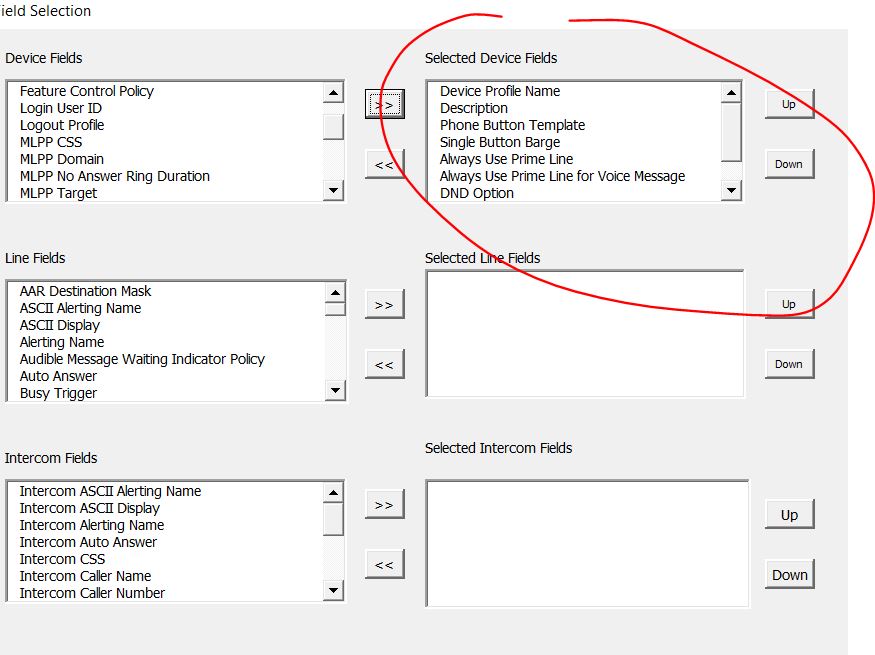


- Next populate the form and click on export to BAT Format - this will generate the file we need to import the UDP profiles, it will look something like that:
DEVICE PROFILE NAME,DESCRIPTION,PHONE BUTTON TEMPLATE,SOFTKEY TEMPLATE,PRIVACY,SINGLE BUTTON BARGE,ALWAYS USE PRIME LINE,ALWAYS USE PRIME LINE FOR VOICE MESSAGE,DND OPTION,MLPP INDICATION,MLPP PREEMPTION
UDP_Test_User_1,UDP_Test_User_1,Standard 7911,Standard Comp 7911 User,Default,Off,Default,Default,Use Common Phone Profile Setting,Default,Default
UDP_Test_User_1,UDP_Test_User_1,Standard 7911,Standard Comp 7911 User,Default,Off,Default,Default,Use Common Phone Profile Setting,Default,Default
- Now upload the file to CUCM>Bulk Admin>Upload files as Insert UDP - Specific Details

- Next Select Bulk Admin>User Device Profiles> Insert UDP, select Insert Specific details and select the file that you just uploaded and use the appropriate template for your phone. My template looks as below. Once you run this job you should have a list of users dev profiles as in the file.


Subscribe to:
Posts (Atom)